Monday, 20 April 2020

perPage: 7,

While Android has matured by leaps and bounds, it's still going through the refinement phase. Over time, Google has both added and removed many popular features in Android. Sometimes the features are completely removed. However, in many cases, they make it to the Settings page or they are buried under different hidden places inside Android. That's why we have come up with this article where we unearth 15 hidden Android features that are quite interesting and helpful. So, let's go ahead and explore some unique Android features which are available on our Android devices.


Hidden Android Features

Here, we have mentioned several hidden Android features ranging from privacy, security, ease of use and more. Further, we have also added some obscure Android features which were released recently but might have gone under the radar. Now with that said, here are the hidden Android features that you should know and use often.

1. Block Spam Calls

The one feature that I turn on whenever I set up a new Android device is: filter spam calls. It saves me from unwanted calls by telemarketers, fraudsters and spammers. If you use a stock Android device, you must have the Phone app by Google installed as your default dialer. To enable spam call blocking, open the Phone app and tap on the three-dot menu on the top-right corner and open Settings. After that, open "Caller ID and spam" and enable both the toggles. Now, whenever you will receive a call by spammers, the screen won't light up or make any sound. It's almost like DND with Total Silence turned on.
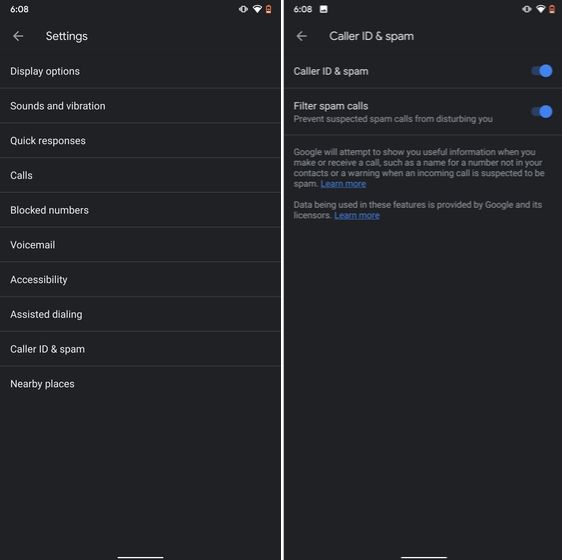
1. Block Spam Calls hidden android features

If you are worried that you will miss important calls then fret not. I have been using this feature for a long time and I can vouch that it works flawlessly. While there are other apps like Truecaller with similar features, you should be wary against handing your data to third-party apps, especially given its shady past record.

2. Verification Code Autofill

Many of us have allowed SMS permission to multiple apps for seamless OTP verification. However, this can lead to serious breach as apps can read all your text messages and also build credit profile without your consent. To crack down on this behavior, Google has brought a new API called the SMS Retriever. It allows apps to capture a one-time code without asking for SMS permission. In case, the app developer has not implemented this API, Google will act as a bridge and provide the verification code. That is awesome, right? So to enable this feature, navigate to Settings -> Google -> Verification Code Autofill and enable the toggle. Make sure you have also enabled the Autofill service by Google.
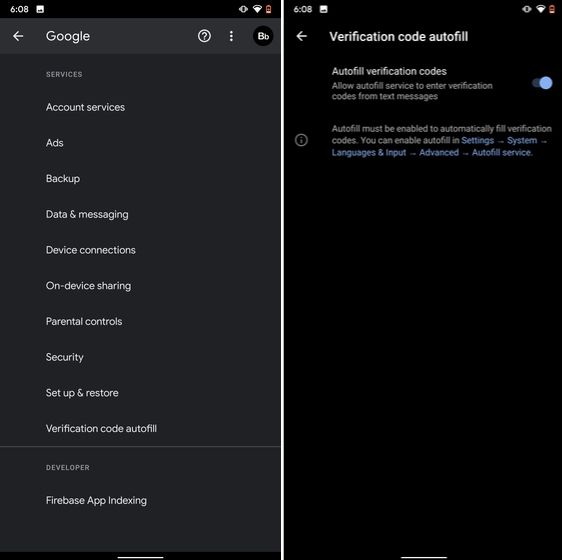
2. Verification Code Autofill

3. Force Dark Mode on all Apps

While the dark mode is slowly becoming the norm, there are still apps like Facebook and WhatsApp which are yet to embrace the dark side. If you want to force dark mode on a range of apps then there is a hidden Android setting that lets you do it. However, you must be on the latest Android 10 build. To enable dark mode for all the apps, navigate to Settings -> About Phone and tap on the Build Number for seven times continuously. A toast notification will show up prompting "Developer Options have been enabled". Now go back, and search for "Override force-dark" in the Settings page. Tap on the first result and then enable the toggle. Just to be sure, restart your device and check if dark mode is working on all apps.
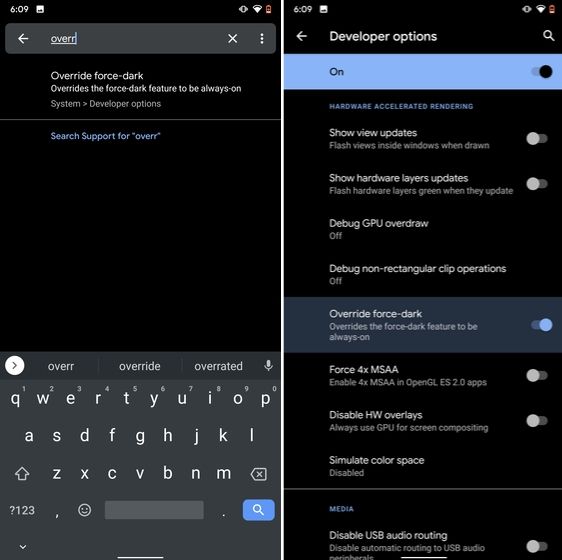
3. Force Dark Mode on all Apps

4. Focus Mode

Google has brought a new feature called Focus Mode to Digital Wellbeing with the launch of Android 10. While Digital Wellbeing is great at limiting the screen time of various apps, Focus Mode allows you to block certain apps completely so you can focus on what you are doing. To configure Focus Mode, follow Settings -> Digital Wellbeing -> Focus Mode. Here, you can select apps that you find distracting and can enable Focus Mode straight from the Quick Settings panel.
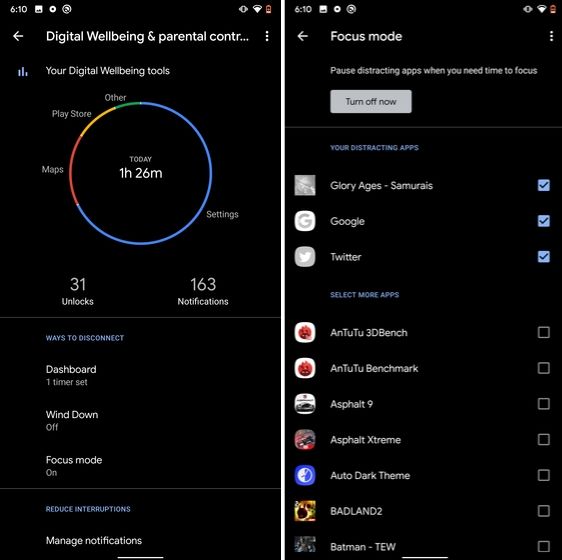
4. Focus Mode hidden android features

5. Share WiFi with QR Code

I know the feeling when someone asks you to share your WiFi's password and you can't seem to remember it. If you use a strong password with multiple hashes and characters then it becomes even more tedious to type it out. In such cases, a QR code can help you seamlessly connect to WiFi networks. Thankfully, Android 10 has this not-so-hidden feature under the WiFi Settings page. Open it and you will find the QR code scanner besides the "Add Network" section. Now, scan the QR code and you will be connected in no time.
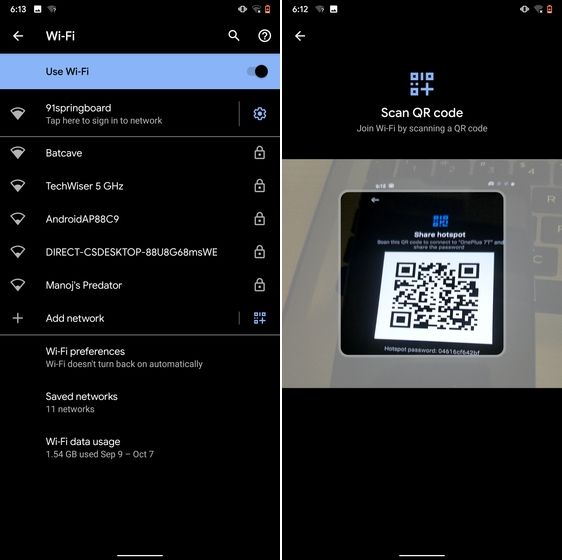
5. Share WiFi with QR Code

6. Randomize MAC Address

MAC address is a unique identifier assigned to WiFi-enabled devices including smartphones. Most devices come with a static MAC which can be exploited and used for tracking user movement. So having a random MAC address reduces the chance of tracking and strengthens your privacy. If you are running Android 10 then you can randomize the MAC address from the WiFi Settings page. Tap on the WiFi that you are connected to and open "Privacy". Here, make sure "Use randomized MAC" is your default pick.
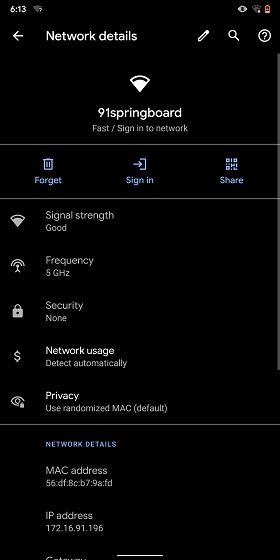
6. Randomize MAC Address

7. Force Apps to Resize in Split Mode

Android has some unique features like Split Mode which make it quite distinct from iOS. It lets you run two apps at once so you can effortlessly multitask between them. However, not all apps support Split Mode and that's where this hidden Android feature comes into play. With this feature, you can force any app to resize in split mode, irrespective of the app compatibility. So to enable this feature, open Settings and search for "resizable". Open the first result and enable "Force activities to be resizable". Now, restart your device and you can enjoy any app in the Split mode.
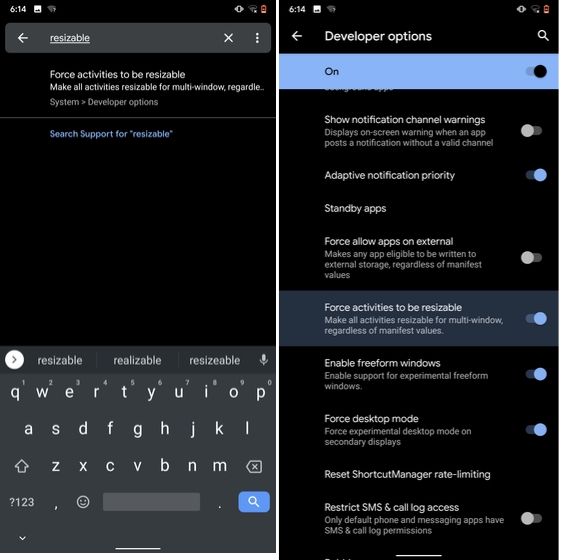
7. Force Apps to Resize in Split Mode

8. Default USB Configuration

If you are someone who regularly connects Android devices to PC then this sneaky feature is going to help you a lot. Android 10 now allows you to choose your default USB configuration. If you transfer files regularly then simply choose the desired settings and you are good to go. To configure USB, open Settings and search for "Default USB" and tap on the first result. Here, choose "File transfer" or any other settings based on your preference.
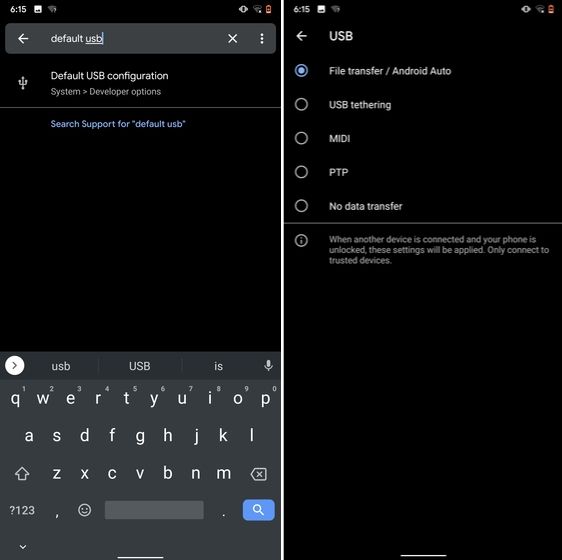
8. Default USB Configuration (2) hidden android features

9. Private DNS

While Private DNS was launched with Android Pie, it still remains one of the least talked features of Android. It allows you to encrypt your DNS query so no one can read it, not even your internet service provider. You can find the Private DNS feature in the "Network and Internet" settings page. Here, open "Private DNS" and choose Automatic for Google's DNS or you can also select some other DNS providers as well. I would recommend you to go with Cloudflare's DNS.
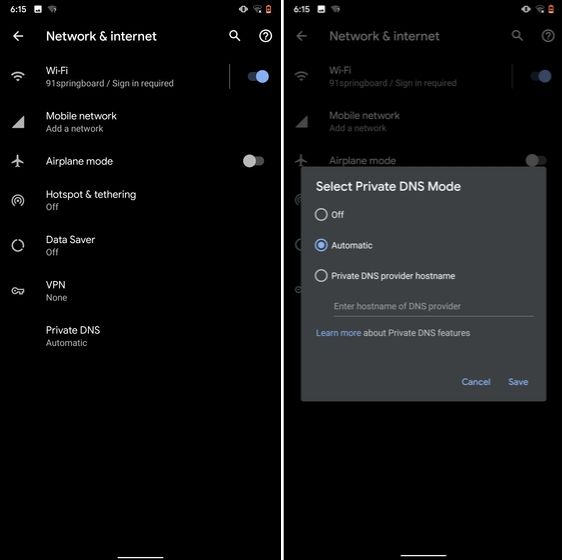
9. Private DNS

10. Device Theming

Device theming has finally arrived on Android, but it's still hidden under the developer options. You can change the accent color, font and icon shape from a handful of options. To find the desired settings page, open Settings and search for "theming". Tap on the top result and customize your Android device as you prefer.
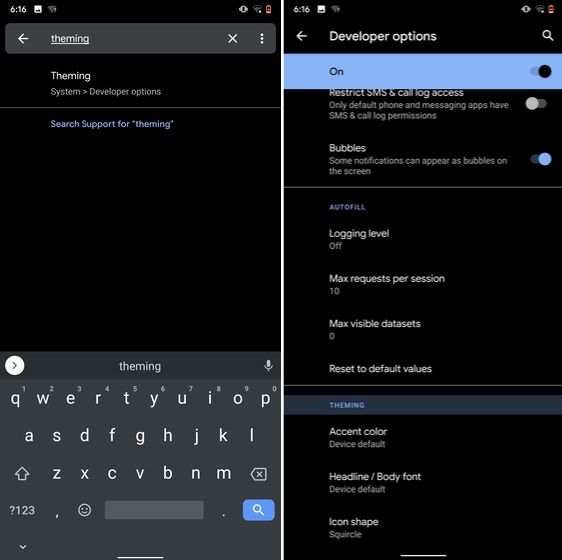
10. Device Theming

11. Show Taps While Screen Recording

With the release of Android Oreo, Google removed the ability to show taps while screen recording for security reasons. However, the settings to configure taps is still available and hidden under the developer options. Just open the Settings page and search for "taps". Open the first result and enable the toggle. Now, you can record your screen with taps and that's really convenient.
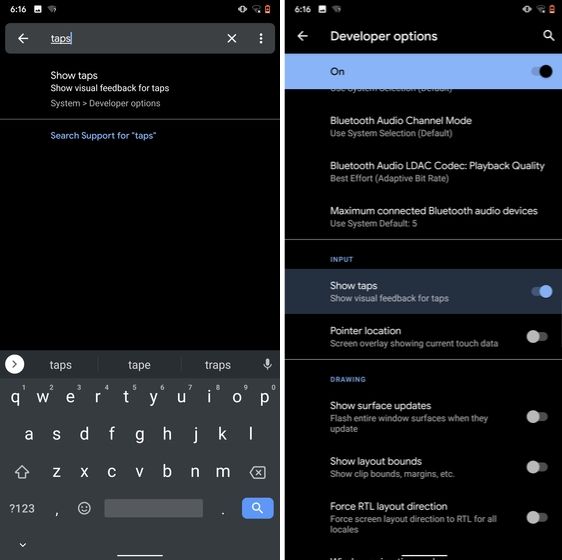
11. Show Taps While Screen Recording hidden android features

12. Capitalize Words Quickly

If you want to capitalize words quickly then Gboard has this nifty feature which is super helpful and I simply love it. Just select the words and tap the "Shift" button twice to capitalize a chunk of words at once. You can also make it lowercase by similarly double tapping the shift button. And if you just want to keep the initials capital then tap the shift button once. That's pretty great, right? So go ahead and type hassle-free with Gboard.
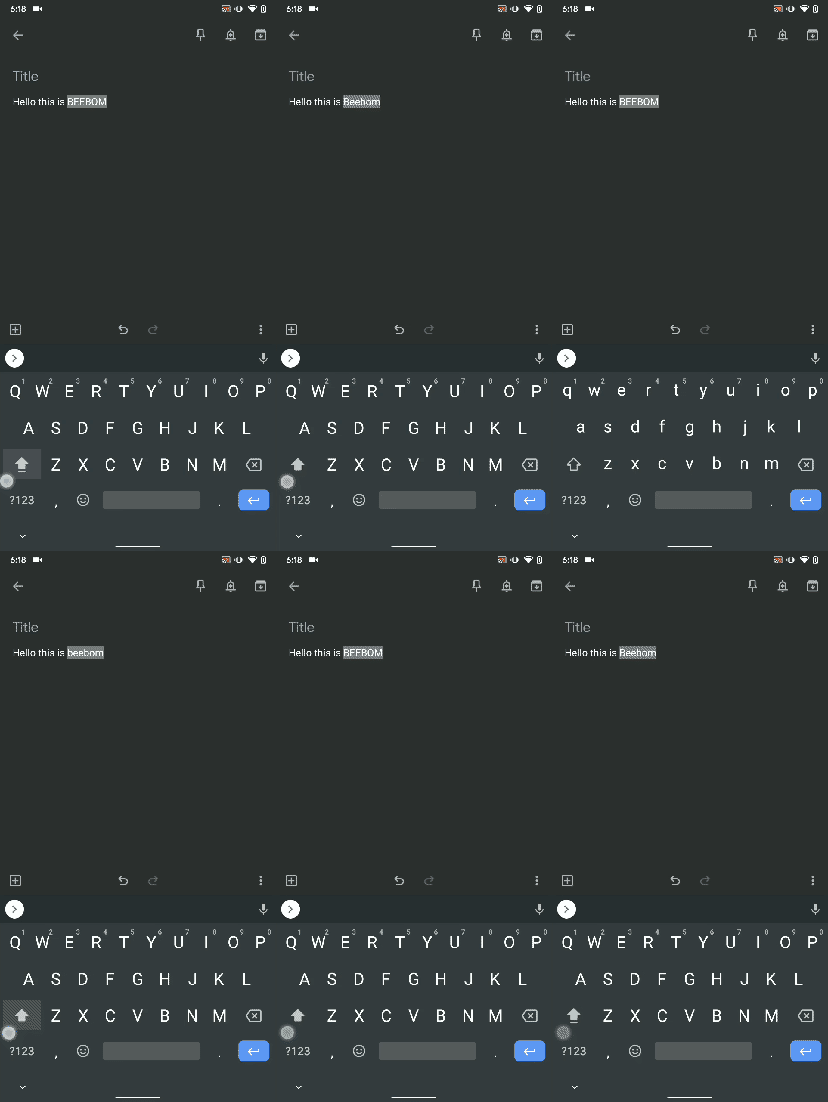
Capitalize Words Quickly

13. Uninstall Multiple Apps

One of the best hidden Android features is that you can uninstall multiple apps at once. It works on older versions of Android as well so that is great. All you have to do is open the Google Play Store and tap on the hamburger menu and select "My apps and games". Here, switch to the "Installed" section and then tap on "Storage". After that, simply select apps that you want to uninstall and hit that "Free Up" button. Voila, multiple apps just got uninstalled in just one tap.
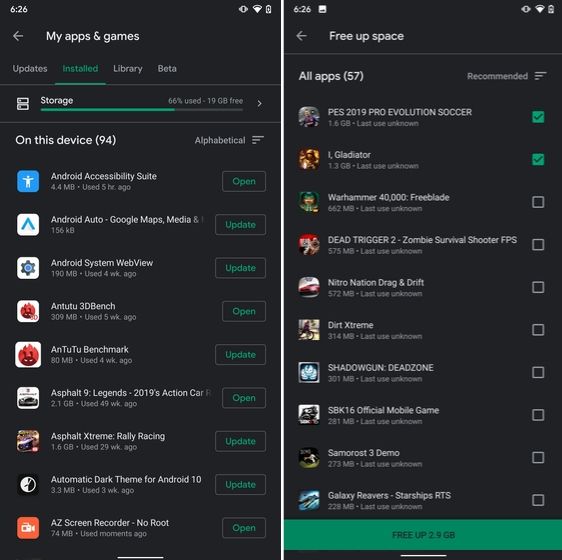
13. Uninstall Multiple Apps

14. Clear Site Storage Using Chrome

Chrome is notorious for accumulating a large amount of data in background which makes the performance worse and also takes up crucial storage space. If you want to check what websites are eating up your memory space then a hidden Chrome setting can help you with that. Open Chrome on your Android device and head over to its Settings page. Now, navigate to Site Settings and open Storage. Here, you will find all the websites with their storage space. Open any website and tap on the "Delete" icon to finally free up your internal storage from unnecessary cached data.
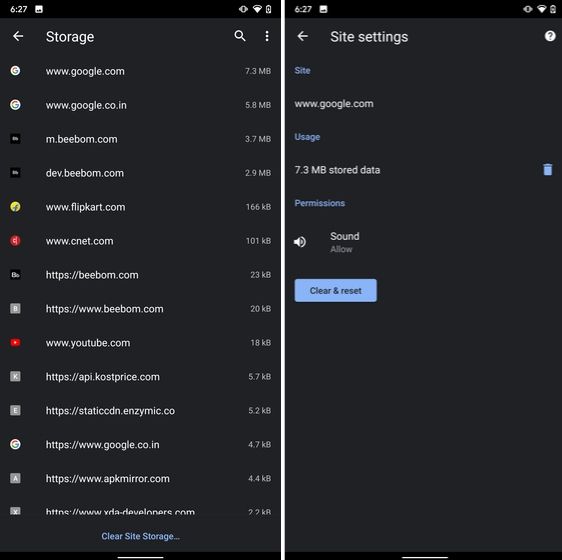
14. Clear Site Storage Using Chrome

15. Street View Layer in Google Maps

Street View is an immersive way to explore places and find new landmarks, hotels, restaurants from anywhere around the world. Now, the Street View Layer has been added to Google Maps and it works pretty well. To check if Street View is available in your region, open Google Maps and tap on the "layer" icon on the top-right corner. Now, tap on "Street View" icon and then zoom out to find blue lines on the map. Finally, tap on the blue lines and Street View will show up for that place. That's cool, right? So go ahead and check out Street View to find some hidden gems around the world.
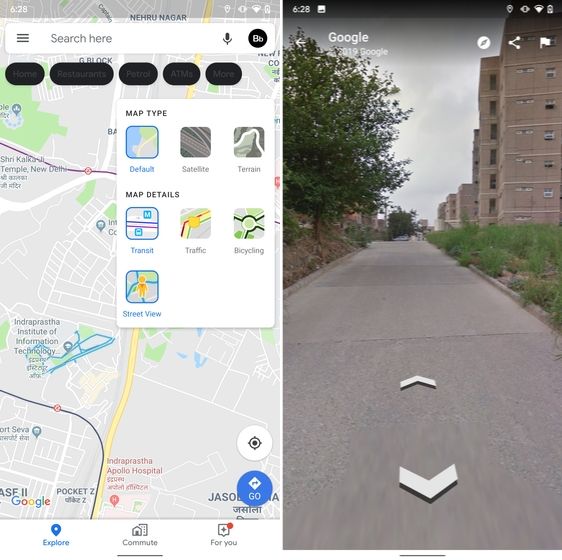
15. Street View Layer in Google Maps hidden android features

Note: The blue lines show up wherever street view is available.

@EVERYTHING NT

Related links


perPage: 7,
perPage: 7,


[Update] If you want to recover Windows 8/8.1 passwords instead of removing them see this tutorial

So we are back. About a Year ago I wrote a post on how to remove Windows Password using CHNTPW but many readers complained that it was not working on Windows 8. I tried myself on many it worked but once I also got stuck. So I did a little work around. In this tutorial I'm going to show you how to remove Windows 8/8.1 passwords using CHNTPW. Well it's little bit tedious than the older one but believe me it's fun too.


Background:

Let's get started with a little bit background. Windows OSs have a User known as Administrator which is hidden by default. This user is there for security reasons (maybe it's the way around). Most of the users who use Windows are lame, sorry to say that but I'm not talking about you, they don't even know that such an invisible account exists so it is almost everytime without a password. But this Administrator user is a SU (Super User), that means you work wonders once you get access to this account. So our first task will be to make it visible and then we'll access it and using it's power privilages we'll remove password of other accounts (which is not really neccessary cuz you can access any user folder or file using Administrator Account).


Requirements:

1. Physical Access to the Victems computer.
2. A Live Bootable Kali/Backtrack Linux Pendrive or DVD.
    (You can downoad Kali Linux here)


Steps:

1. Plug in the Live Bootable Pendrive/DVD into to victim's computer and then boot from it.

2. After accessing kali linux (I'm using Kali Linux) from victim's computer open a terminal.

3. Now we have to mount the drive on which the victim's OS is loaded. In my case it is sda2. So in order to mount that drive I'll type the command:
mount /dev/sda2 /media/temp


this means that I'm mounting the drive in folder /media/temp if you haven't created a temp folder in /media then you must create one by typing these command:
cd /
mkdir /media/temp

4. After mounting the OS we need to access the SAM file and make visible Administrator account using chntpw. It's so simple lemme show you how.
first we'll navigate to /media/temp/Windows/System32/config:
cd /media/temp/Windows/System32/config

now we display the list of users on our victim's computer:
chntpw SAM -l


You'll see an Administrator User there which is disabled. Now we'll enable that:
chntpw SAM -u Administrator


now type 4 and hit return


press 'y' to save changes to SAM file.


OK voila! the hard part is done.

5. Now restart your Computer and take out your Pendrive/DVD from your computer and boot into windows 8 OS. You should be able to see Administrator User on Logon screen now. If not then look for a backward pointing Arrow besides the user Login Picture. Click on that Arrow and you should see an Administrator User. Click on the Administrator Account and wait for a while until windows 8 sets it up.

6. After a while you get Access to the computer and you can access anything. Enjoy :)

7. What you want to remove the password? I don't think it's a stealth mode idea, is it? OK I'll tell you how to do that but It's not a good hacker way of doing.
Open up the command prompt, simple way to do it is:

Press Ctrl + 'x' and then Press 'a' and if prompted click yes.
After that Enter following commands:

net user
(This command will display all users on computer)

net user "User Name" newPassword 
(This Command will change the Password of User Name user to newPassword).
OK you're done now logout and enter the new password. It will work for sure.

8. If you want to disable the Administrator Account again then type in command prompt:
net user Administrator /active:no

I tried it on Windows 8/8.1 all versions and it works. Guess what it works on all windows OSs.

Hope you enjoyed this tutorial. Don't forget to share it and yes always read the Disclaimer.

More info


  1. Hacker Tools List
  2. Top Pentest Tools
  3. Blackhat Hacker Tools
  4. Pentest Tools
  5. Black Hat Hacker Tools
  6. Pentest Tools For Windows
  7. Hacking Tools Usb
  8. Hacking Tools Kit
  9. Hacker Tools Apk
  10. Growth Hacker Tools
  11. Hacking Tools Windows
  12. Pentest Tools Free
  13. Hacker Tools Mac
  14. Pentest Tools Nmap
  15. Ethical Hacker Tools
  16. Hacking Tools 2020
  17. Underground Hacker Sites
  18. Pentest Tools Github
  19. Pentest Tools Bluekeep
  20. Pentest Reporting Tools
  21. Hacking Tools For Mac
  22. Underground Hacker Sites
  23. Hack Tool Apk
  24. Tools Used For Hacking
  25. Hack Apps
  26. Usb Pentest Tools
  27. Hacking Tools Download
  28. Hacker Tools For Pc
perPage: 7,

Sunday, 19 April 2020

perPage: 7,


Research: SentinelOne, Tim Strazzere Hiding in plain sight?
Sample credit: Tim Strazzere


List of files

9f7ead4a7e9412225be540c30e04bf98dbd69f62b8910877f0f33057ca153b65  malware
d507119f6684c2d978129542f632346774fa2e96cf76fa77f377d130463e9c2c  malware
fddb36800fbd0a9c9bfffb22ce7eacbccecd1c26b0d3fb3560da5e9ed97ec14c  script.decompiled-pretty
ec5d4f90c91273b3794814be6b6257523d5300c28a492093e4fa1743291858dc  script.decompiled-raw
4d46893167464852455fce9829d4f9fcf3cce171c6f1a9c70ee133f225444d37  script.dumped

malware_a3dad000efa7d14c236c8018ad110144
malware fcbfb234b912c84e052a4a393c516c78
script.decompiled-pretty aab8ea012eafddabcdeee115ecc0e9b5
script.decompiled-raw ae0ea319de60dae6d3e0e58265e0cfcc
script.dumped b30df2e63bd4f35a32f9ea9b23a6f9e7


Download


Download. Email me if you need the password


More information


perPage: 7,


Information gathering can be broken into seven logical steps. Footprinting is performed during the first two steps of unearthing initial information and locating the network range.


Footprinting

Footprinting is defined as the process of establishing a scenario or creating a map of an organization's network and systems. Information gathering is also known as footprinting an organization. Footprinting is an important part of reconnaissance process which is typically used for collecting possible information about a targeted computer system or network. Active and Passive both could be Footprinting. The example of passive footprinting is assessment of a company's website, whereas attempting to gain access to sensitive information through social engineering is an example of active information gathering. Basically footprinting is the beginning step of hacker to get hacked someone because having information about targeted computer system is the main aspect of hacking. If you have an information about individual you wanna hack so you can easily hacked that individual. The basic purpose of information gathering is at least decide what type of attacks will be more suitable for the target. Here are some of the pieces of information to be gathered about a target
during footprinting:
  • Domain name
  • Network blocks
  • Network services and applications
  • System architecture
  • Intrusion detection system
  • Authentication mechanisms
  • Specific IP addresses
  • Access control mechanisms
  • Phone numbers
  • Contact addresses
Once this information is assemble, it can give a hacker better perception into the organization, where important information is stored, and how it can be accessed.

Footprinting Tools 

Footprinting can be done using hacking tools, either applications or websites, which allow the hacker to locate information passively. By using these footprinting tools, a hacker can gain some basic information on, or "footprint," the target. By first footprinting the target, a hacker can eliminate tools that will not work against the target systems or network. For example, if a graphics design firm uses all Macintosh computers, then all hacking software that targets Windows systems can be eliminated. Footprinting not only speeds up the hacking process by eliminating certain tool sets but also minimizes the chance of detection as fewer hacking attempts can be made by using the right tool for the job. Some of the common tools used for footprinting and information gathering are as follows:
  • Domain name lookup
  • Whois
  • NSlookup
  • Sam Spade
Before we discuss these tools, keep in mind that open source information can also yield a wealth of information about a target, such as phone numbers and addresses. Performing Whois requests, searching domain name system (DNS) tables, and using other lookup web tools are forms of open source footprinting. Most of this information is fairly easy to get and legal to obtain.

Footprinting a Target 

Footprinting is part of the preparatory pre-attack phase and involves accumulating data regarding a target's environment and architecture, usually for the purpose of finding ways to intrude into that environment. Footprinting can reveal system vulnerabilities and identify the ease with which they can be exploited. This is the easiest way for hackers to gather information about computer systems and the companies they belong to. The purpose of this preparatory phase is to learn as much as you can about a system, its remote access capabilities, its ports and services, and any specific aspects of its security.

DNS Enumeration

DNS enumeration is the process of locating all the DNS servers and their corresponding records for an organization. A company may have both internal and external DNS servers that can yield information such as usernames, computer names, and IP addresses of potential target systems.

NSlookup and DNSstuff

One powerful tool you should be familiar with is NSlookup (see Figure 2.2). This tool queries DNS servers for record information. It's included in Unix, Linux, and Windows operating systems. Hacking tools such as Sam Spade also include NSlookup tools. Building on the information gathered from Whois, you can use NSlookup to find additional IP addresses for servers and other hosts. Using the authoritative name server information from Whois ( AUTH1.NS.NYI.NET ), you can discover the IP address of the mail server.

Syntax

nslookup www.sitename.com
nslookup www.usociety4.com
Performing DNS Lookup
This search reveals all the alias records for www.google.com and the IP address of the web server. You can even discover all the name servers and associated IP addresses.

Understanding Whois and ARIN Lookups

Whois evolved from the Unix operating system, but it can now be found in many operating systems as well as in hacking toolkits and on the Internet. This tool identifies who has registered domain names used for email or websites. A uniform resource locator (URL), such as www.Microsoft.com , contains the domain name ( Microsoft.com ) and a hostname or alias ( www ).
The Internet Corporation for Assigned Names and Numbers (ICANN) requires registration of domain names to ensure that only a single company uses a specific domain name. The Whois tool queries the registration database to retrieve contact information about the individual or organization that holds a domain registration.

Using Whois

  • Go to the DNSStuff.com website and scroll down to the free tools at the bottom of the page.
  • Enter your target company URL in the WHOIS Lookup field and click the WHOIS button.
  • Examine the results and determine the following:
    • Registered address
    • Technical and DNS contacts
    • Contact email
    • Contact phone number
    • Expiration date
  • Visit the company website and see if the contact information from WHOIS matches up to any contact names, addresses, and email addresses listed on the website.
  • If so, use Google to search on the employee names or email addresses. You can learn the email naming convention used by the organization, and whether there is any information that should not be publicly available.

Syntax

whois sitename.com
whois usociety4.com

Related articles
  1. Hacking Apps
  2. Pentest Tools Website
  3. Hacker Tools For Mac
  4. Hack Tools For Pc
  5. New Hacker Tools
  6. Best Pentesting Tools 2018
  7. Pentest Box Tools Download
  8. Pentest Recon Tools
  9. Hacking Tools Pc
  10. Pentest Reporting Tools
  11. Easy Hack Tools
  12. Tools Used For Hacking
  13. Pentest Recon Tools
  14. Hacking Tools Windows 10
  15. Hacker Tools For Pc
  16. Hacking Tools For Kali Linux
  17. Pentest Tools Download
  18. Pentest Tools Android
  19. Hacker Tools For Windows
  20. Hacker Hardware Tools
  21. Github Hacking Tools
  22. Hack Tools Pc
  23. Hacking Tools Github
  24. Pentest Tools List
  25. Bluetooth Hacking Tools Kali
  26. Android Hack Tools Github
  27. Pentest Tools
perPage: 7,
Over $60 Million Worth of Bitcoins Hacked from NiceHash Exchange. Bitcoin mining platform and exchange NiceHash has been hacked, leaving investors short of close to $68 million in BTC.
As the price of Bitcoin continues to rocket, surging past the $14,500 mark at the time of writing, cyberattackers have once again begun hunting for a fresh target to cash in on in this lucrative industry.
Banks and financial institutions have long cautioned that the volatility of Bitcoin and other cryptocurrency makes it a risky investment, but for successful attackers, the industry potentially provides a quick method to get rich — much to the frustration of investors.
Unfortunately, it seems that one such criminal has gone down this path, compromising NiceHash servers and clearing the company out.
In a press release posted on Reddit, on Wednesday, NiceHash said that all operations will stop for the next 24 hours after their "payment system was compromised and the contents of the NiceHash Bitcoin wallet have been stolen."
NiceHash said it was working to "verify" the precise amount of BTC stolen, but according to a wallet which allegedly belongs to the attacker — traceable through the blockchain — 4,736.42 BTC was stolen, which at current pricing equates to $67,867,781.
"Clearly, this is a matter of deep concern and we are working hard to rectify the matter in the coming days," NiceHash says. "In addition to undertaking our own investigation, the incident has been reported to the relevant authorities and law enforcement and we are co-operating with them as a matter of urgency."
"We are fully committed to restoring the NiceHash service with the highest security measures at the earliest opportunity," the trading platform added.
The company has also asked users to change their online passwords as a precaution. NiceHash says the "full scope" of the incident is unknown.
"We are truly sorry for any inconvenience that this may have caused and are committing every resource towards solving this issue as soon as possible," the company added.
Inconvenience is an understatement — especially as so much was left in a single wallet — but the moment those coins shift, we may know more about the fate of the stolen investor funds.
Related posts

Blog Archive

GET THE LOVE OF YOUR LIFE

Popular Posts

Recent Posts